
How it works
A guide to working with us
What to expect from sign-up to your first paid claim, and how to use your workspace day to day. Every screenshot shows an invented demo practice; no real patient is shown.
This is a managed service. We check, send and follow up every claim, fix rejections, work denials and post payments. Your part is short: approve claims, answer the occasional question that needs a provider, and decide on the few claims that need you. Your workspace shows everything, any time.
1. Start your free trial
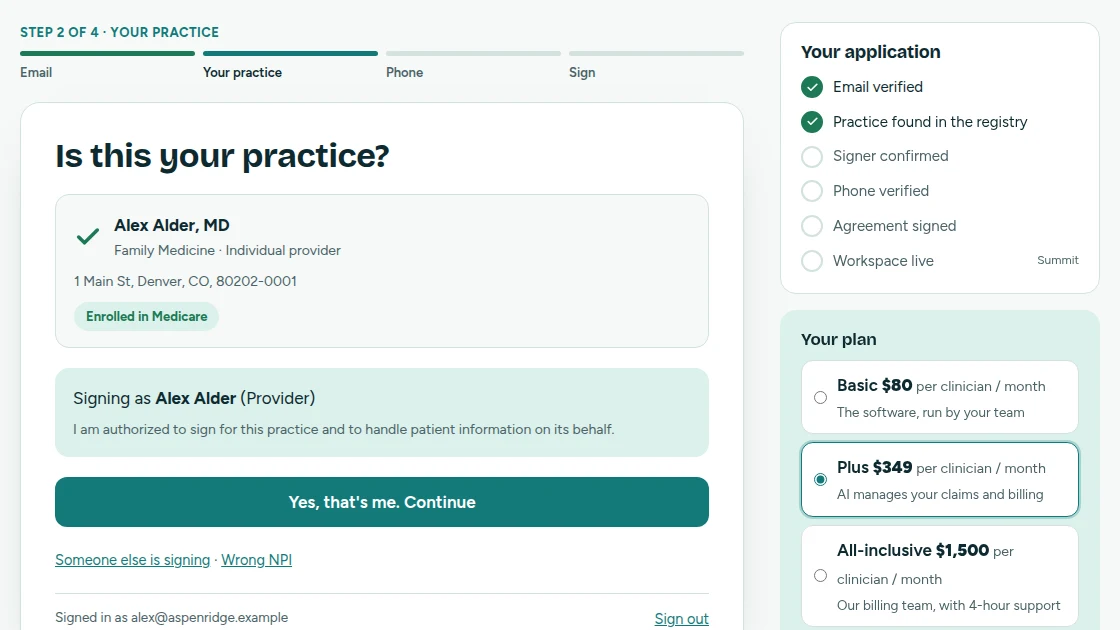
Sign-up takes four short steps and no card. It confirms who you are and that the practice is real, which payers require before we can bill for you.
- Email. Enter your work email and the 6-digit code we send you.
- Your practice. Enter the practice's NPI. We look it up in the national NPI registry and show what we find, including Medicare enrollment, so you can confirm it's yours. If someone other than the provider on record signs for the practice, choose "Someone else is signing".
- Phone. We text a code to the phone number on your NPI record.
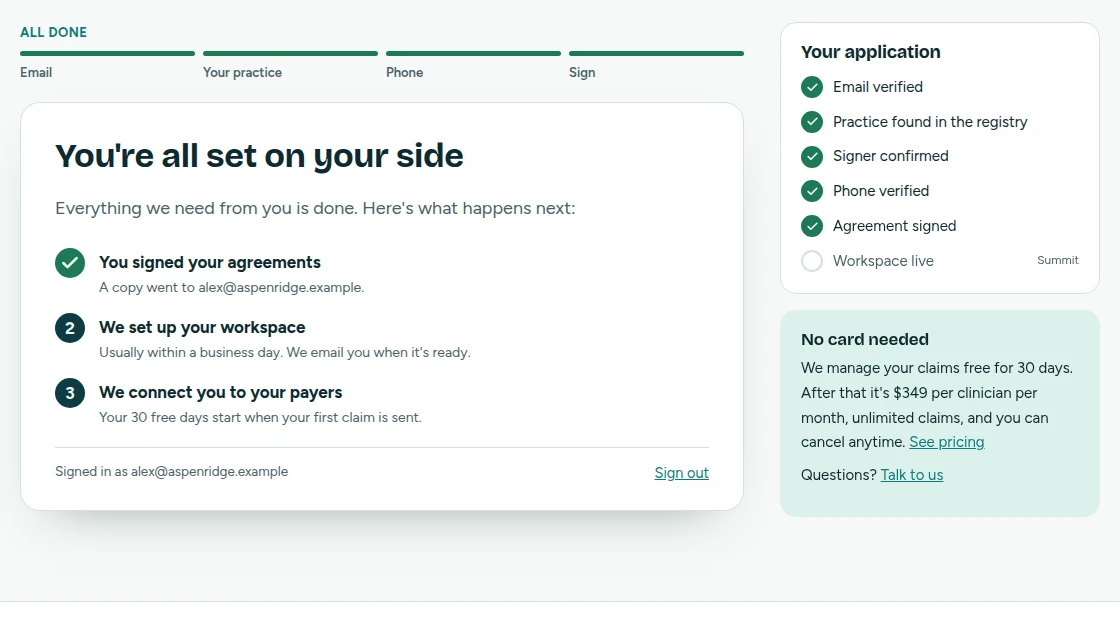
- Sign. Read and sign the service agreement and the business associate agreement (BAA) electronically. A signed copy is emailed to you.
2. We set up your workspace
Each practice gets its own workspace, kept separate from every other practice. We set it up, usually within a business day, and email you when it's ready. The email tells you how to sign in. You'll be the practice's administrator.
3. Signing in
Sign in at summitpracticebilling.com/signin with Google, Microsoft or a password for your practice account. The first time, choose "Forgot password, or no password yet?" if you'd like a password, and we'll email you a link to set one.
Every sign-in also asks for a 6-digit code we email you. You can have a trusted device remembered for 30 days. For your patients' privacy, the workspace signs you out after 15 minutes without activity, and five wrong tries lock an account for 15 minutes.
4. Connect your payers
Before claims can go to Medicare and Medicaid electronically, each payer has to approve your practice's connection (called enrollment). We send these requests for you.
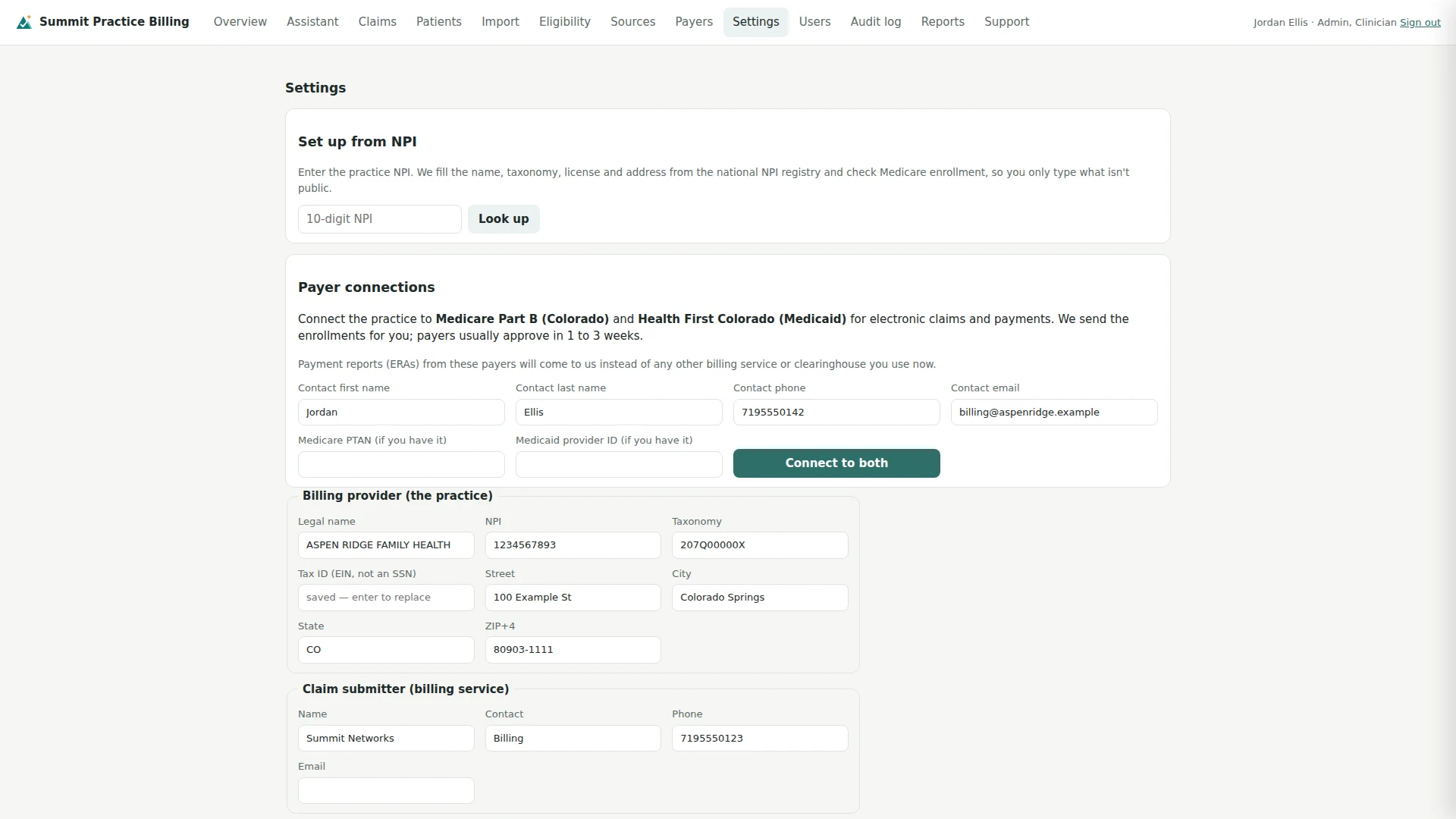
- Open Settings. Under Set up from NPI, enter the practice NPI and choose Use these details. We fill in what's public; add anything still needed, such as your tax ID.
- Under Payer connections, add a contact name, phone and email, and your Medicare PTAN or Medicaid provider ID if you have them. Choose Connect to both.
- Payers usually approve in 1 to 3 weeks. We email you when one is approved or needs something from you, and the status shows in the same place.
To bill another insurer, open Payers, search for it by name and choose Add. If it needs enrollment we start it for you.
Good to know. Payment reports (ERAs) from these payers will come to us instead of any other billing service or clearinghouse you use now. Claims you create while a payer is approving you are checked and wait; they go out the day the connection is approved. Your 30 free days start when your first claim is sent, so waiting on payers doesn't use up your trial.
5. Your overview
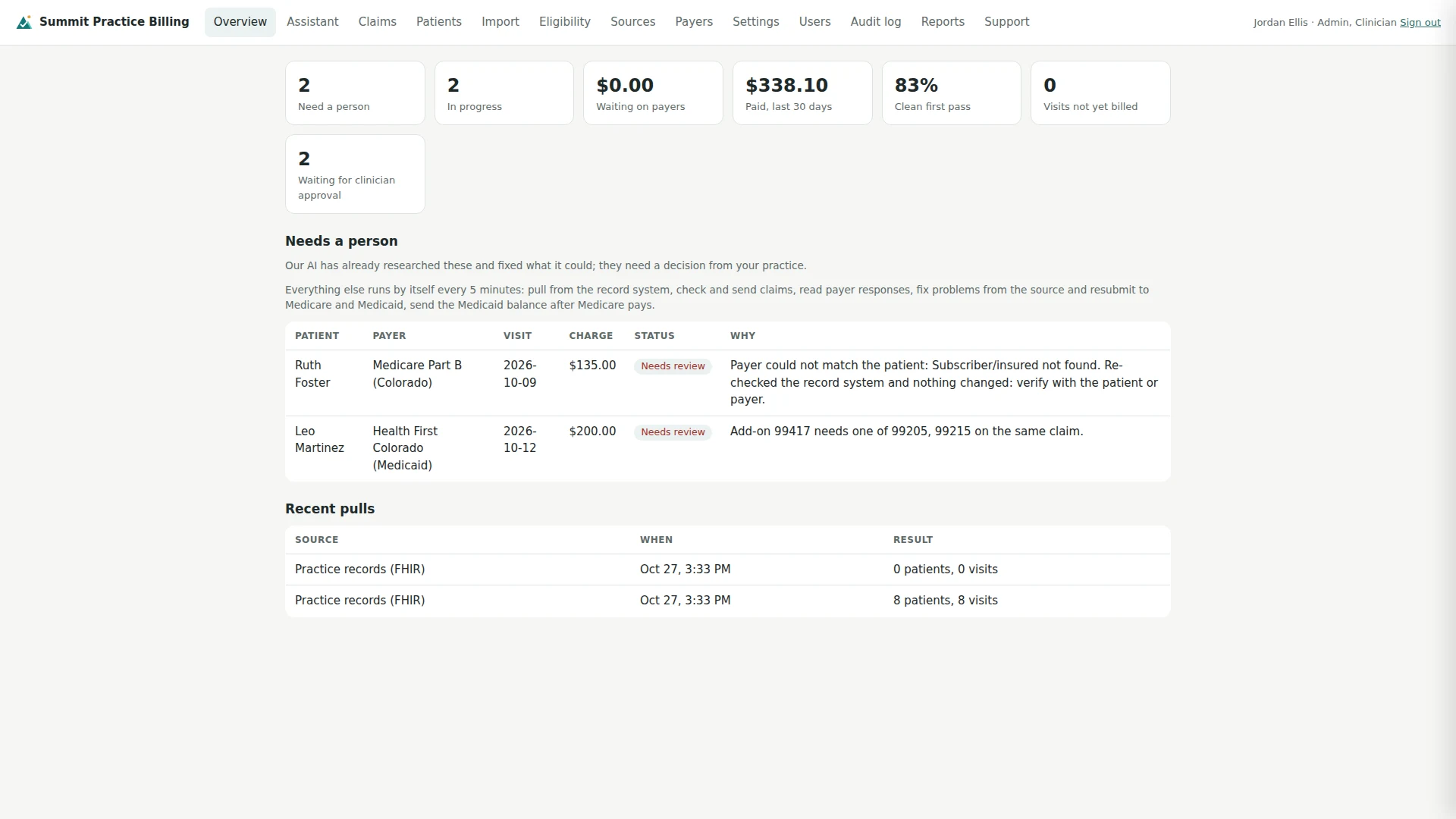
The Overview is the first thing you see. The cards show what needs a person, what's in progress, what payers owe, what's been paid in the last 30 days and how many claims passed on the first try. Below them is the short list of claims that need someone to decide something. Everything else runs by itself every few minutes.
6. Claims and approving them
A claim is built from each finished visit and checked against the payer's rules before anything is sent: coverage, provider and practice details, codes that can't be billed together, telehealth rules and the filing deadline.
Nothing is sent until a clinician approves it. On Claims, a bar shows how many are ready; choose Review and attest to approve them. We never change a diagnosis or procedure code on our own. Only a clinician can, with Change codes on the claim.
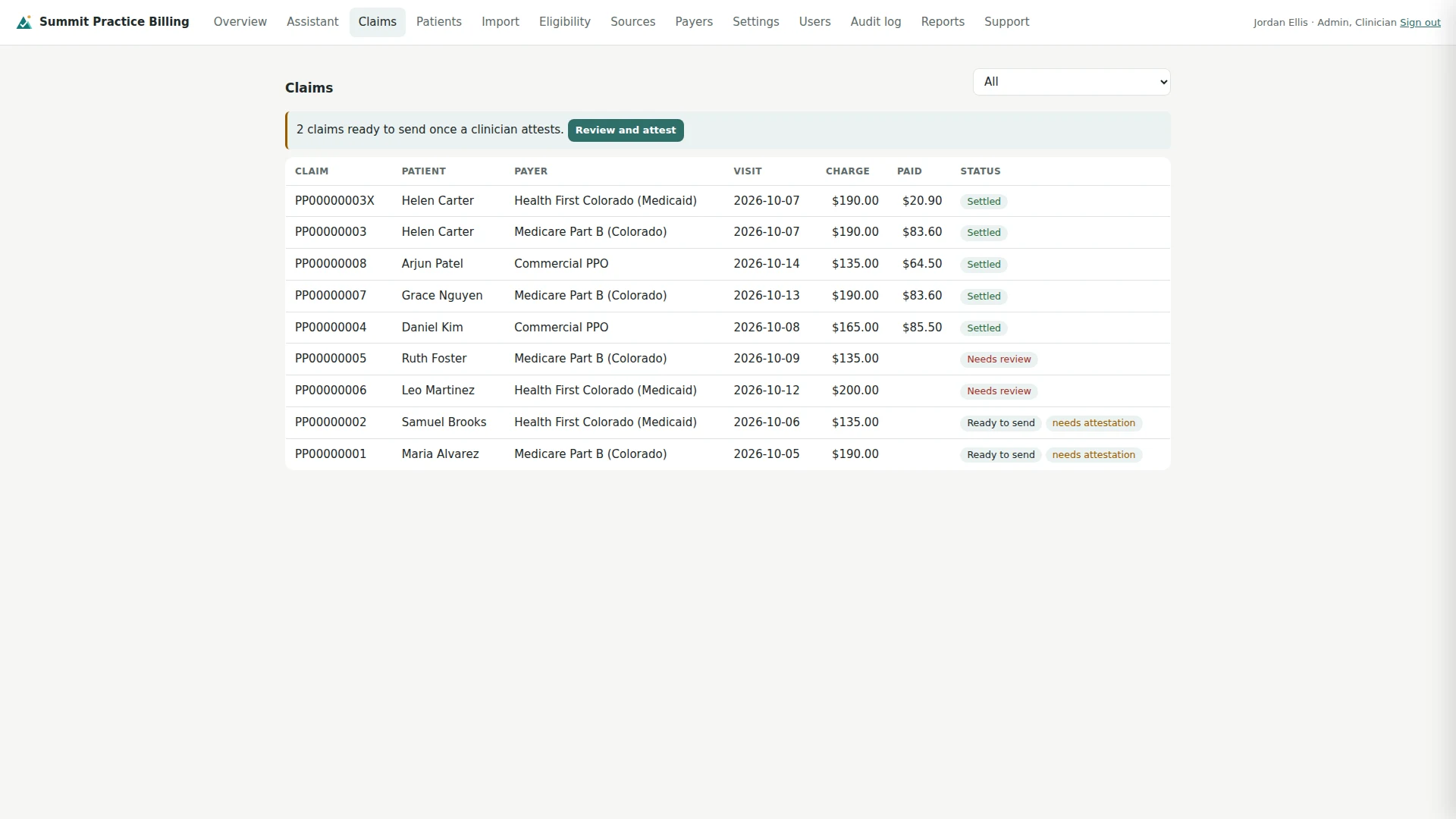
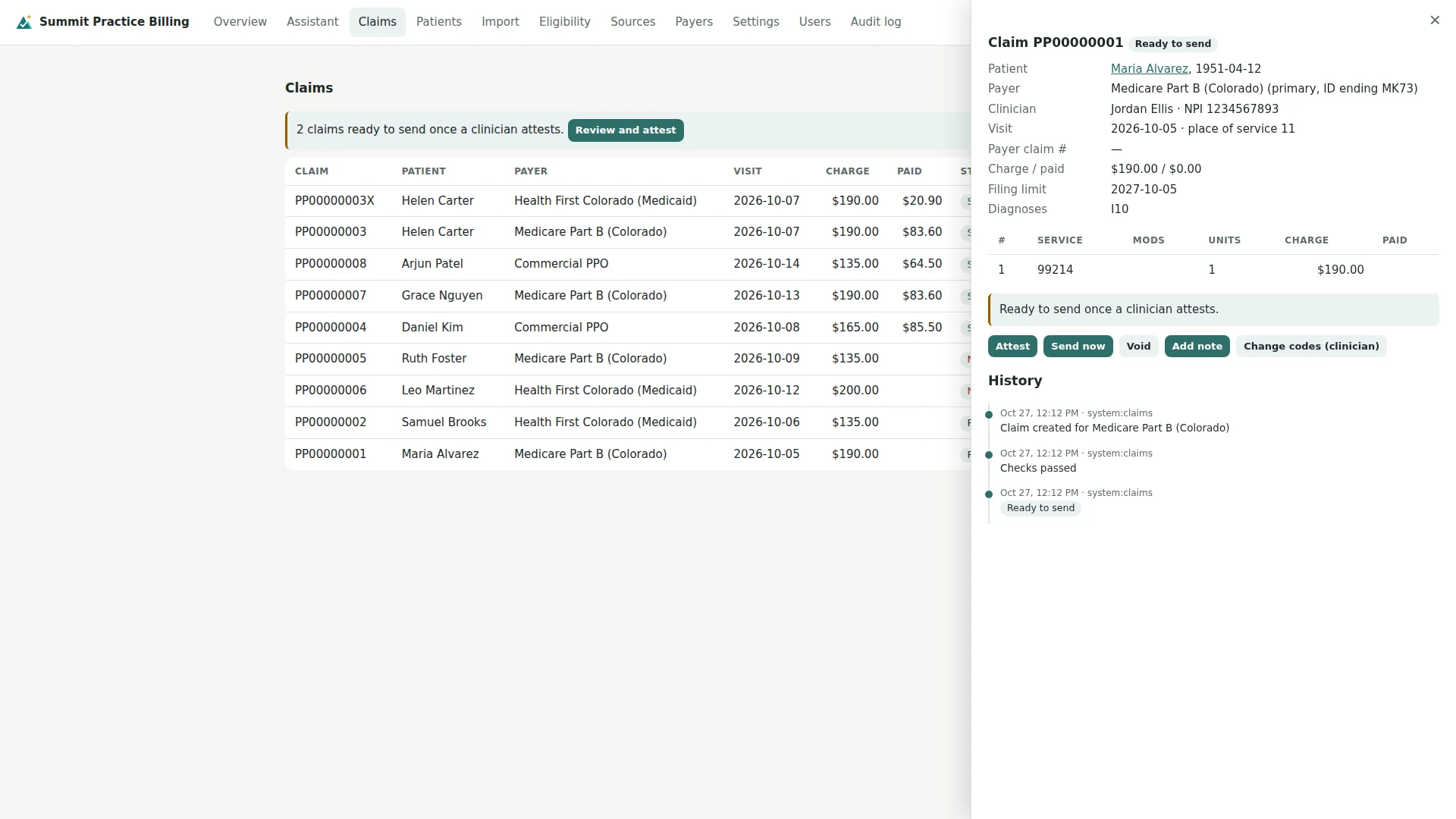
Choose any claim to see its details, its history and the actions available for it. A ready claim that's waiting, for example for a payer to approve your connection, says so next to its status, with the reason.
7. When a claim needs a person
When the rules or a payer stop a claim, it appears under Needs a person with the reason in plain words. Before it reaches anyone, we research the payer's published rules for that problem and fix what we can, such as the place of service or a telehealth modifier, and send it again. We never change a diagnosis or procedure code on our own. What's left is a decision for your practice: correct the codes, send a corrected claim, appeal, write it off or void it.
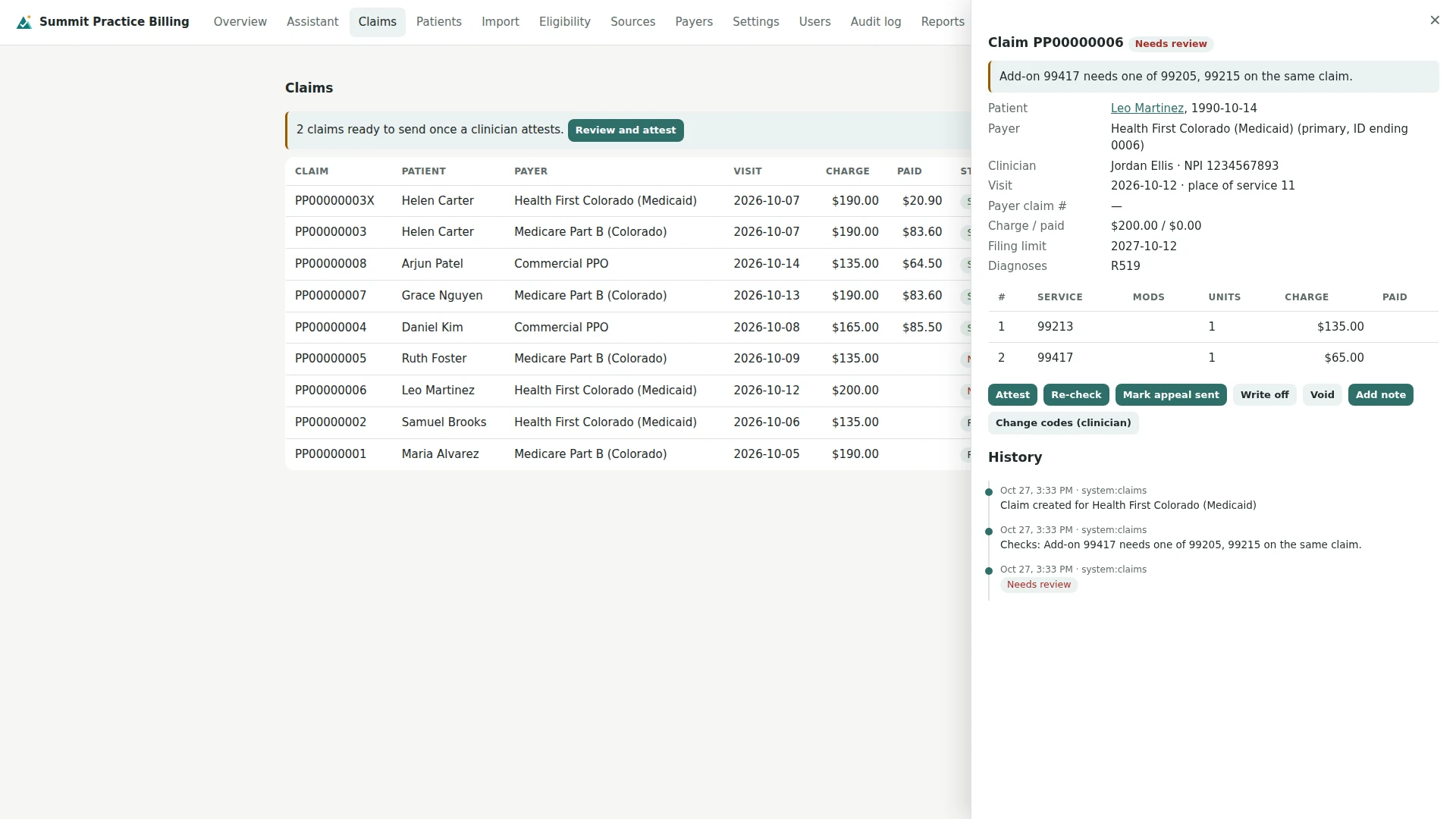
For denials, the claim includes an appeal draft for the provider to finish. We also flag claims a payer hasn't answered after 60 days and claims within 30 days of their filing deadline.
8. Payments and follow-up
When a payer pays, the payment is posted to the claim: what was paid, what the patient owes and any adjustment, with the payer's reason codes. If Medicare pays first and the patient also has Medicaid, we follow the claim to Medicaid. If that never arrives, we bill Medicaid ourselves. For Medicaid patients, the claim is marked "do not bill the patient".
9. Patients and eligibility
Patients lists everyone with their insurance and last visit. Choose a patient to see their insurance, check it with the payer and bill any finished visit that doesn't have a claim yet.
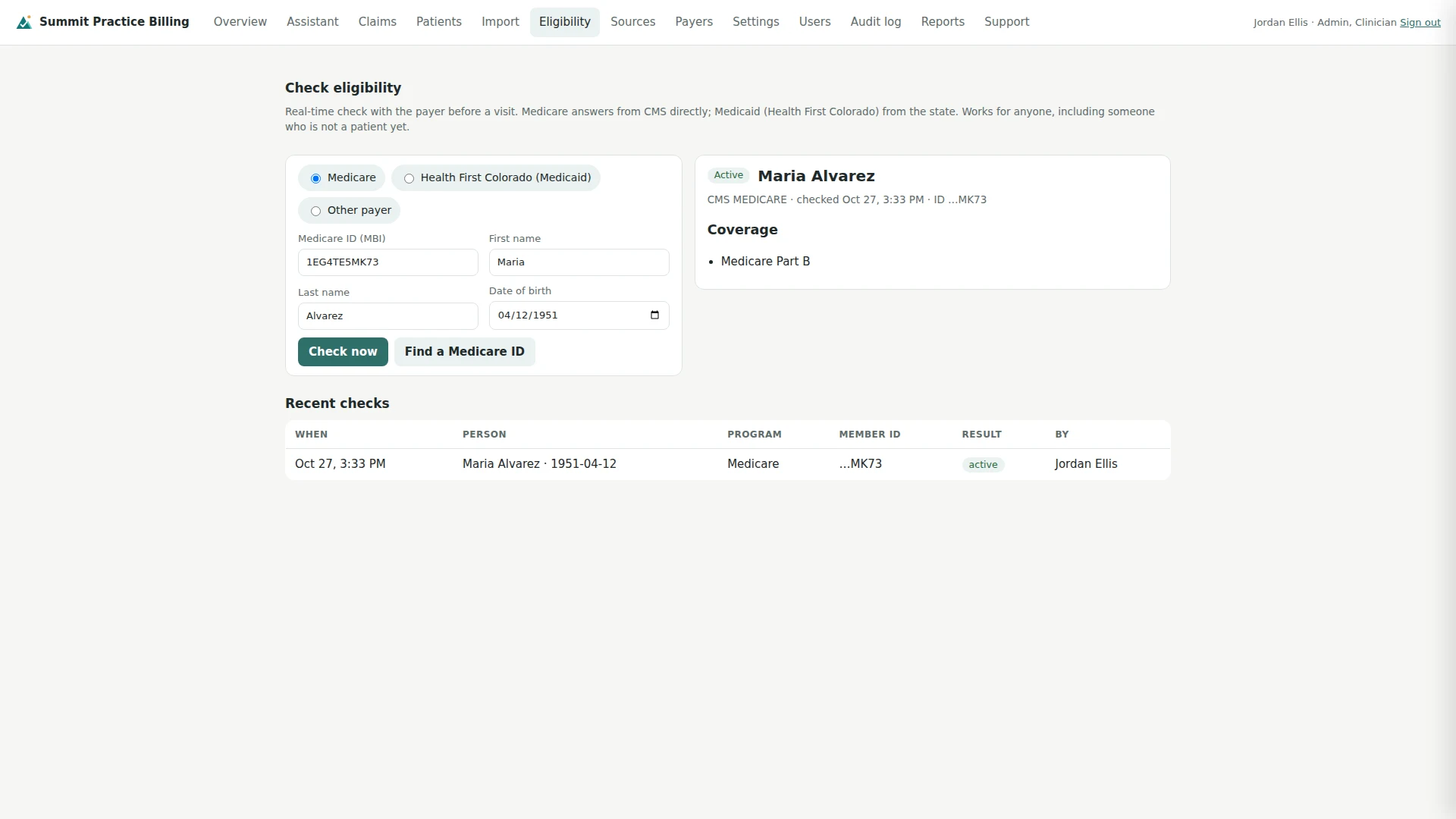
Eligibility checks coverage in seconds, for current patients and for people who aren't patients yet. Choose Medicare, your state's Medicaid or another payer, and enter the member ID, name and date of birth. If you don't have a Medicare ID, Find a Medicare ID can look it up from the name and date of birth.
10. Bringing your records over
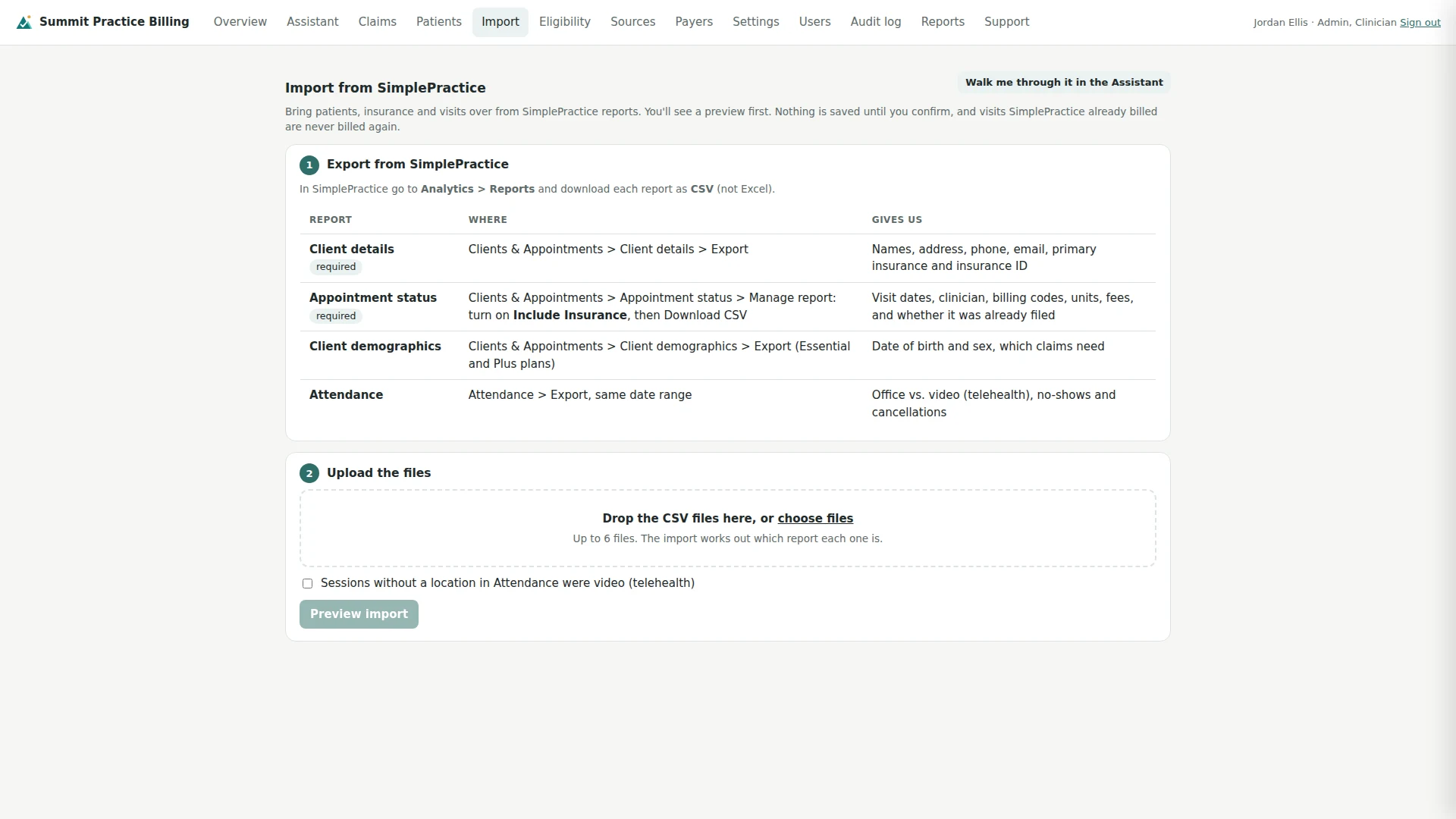
If your practice uses SimplePractice, open Import. It lists the reports to export, then you upload them and choose Preview import. You see every patient and visit, and anything that needs fixing, before anything is saved. Visits already billed in SimplePractice aren't billed twice. If you get stuck, choose Walk me through it in the Assistant.
If your record system offers standard FHIR access, we can connect to it on Sources so finished visits arrive by themselves. Clinical notes are never imported.
11. Your team and sign-in
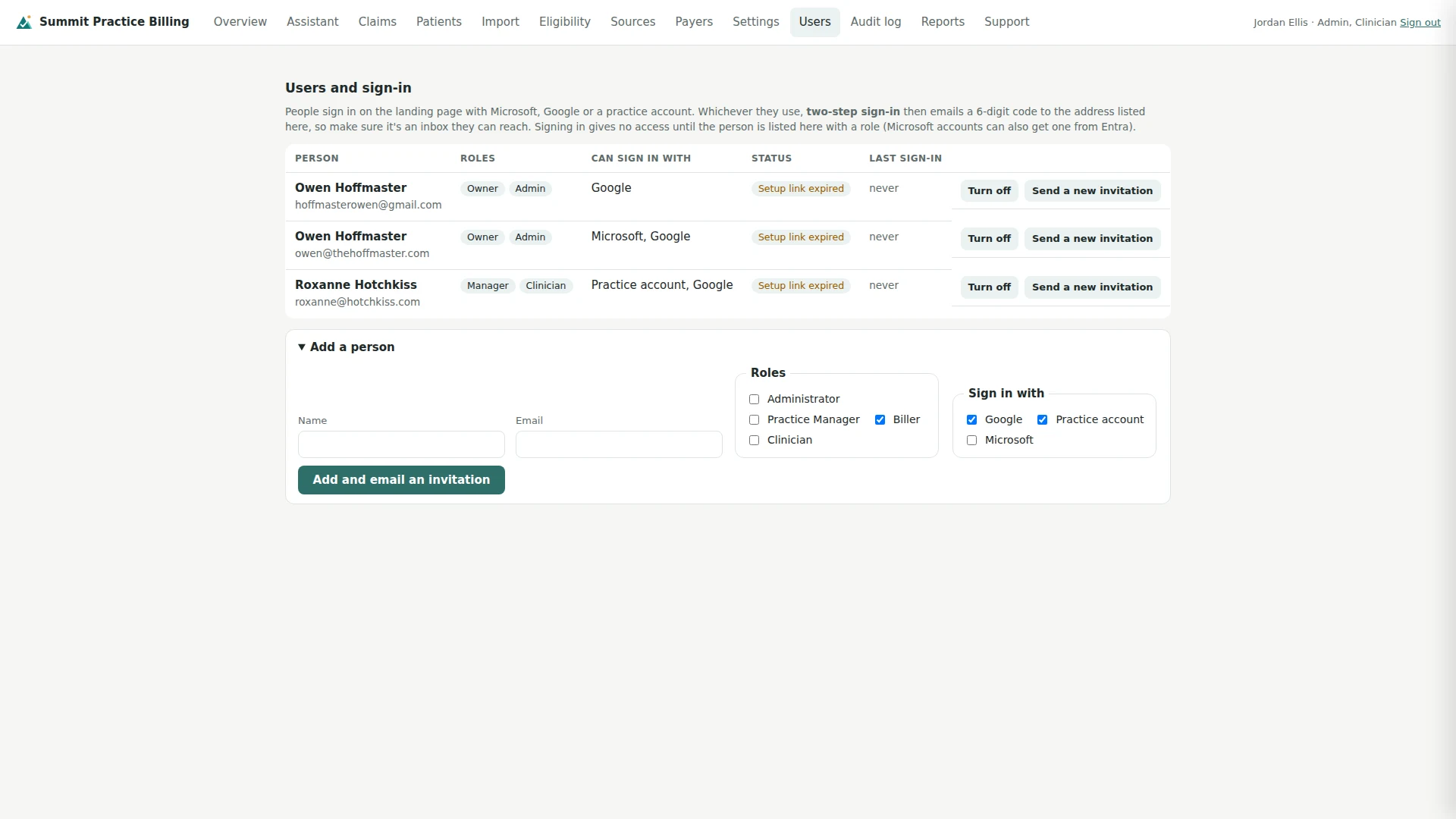
Add the people who work with you on Users, each with the roles their job needs:
- Clinician: approves claims and is the only role that changes codes.
- Biller: works claims, patients, eligibility and payers.
- Practice manager: everything a biller does, plus settings, users and the audit log.
- Administrator: everything.
When you add someone, we email them an invitation with a setup link that works once, for 7 days. You can also copy the link and send it yourself. They choose how to sign in, and they use the same emailed code as everyone else. Every sign-in and every view of patient information is recorded in the Audit log.
12. Your plan and billing
Your 30 free days start when your first claim is sent. A banner shows how many days are left. To keep going, add a card or bank account under Settings, Plan and billing on Stripe's secure page; nothing is charged when you add it. After the trial it's $349 per clinician per month, unlimited claims, charged on the 1st for the month before, and you can cancel anytime. See pricing.
13. The assistant
The Assistant answers questions about your practice's billing in plain English, like "What needs my attention?" or "Show what payers owe by age". It can also prepare changes, such as adding a patient or a corrected claim. Each one shows as a proposed change, and nothing is saved until you choose Confirm. It never changes codes.
14. Getting help
Call (719) 722-3127 or send us a note. Please don't send patient names or health information by email or the contact form. Tell us which claim you mean by its claim number from your workspace instead.
Ready when you are
Try it free for 30 days, no card needed. Then $349 per clinician per month, unlimited claims.
Start free trial